
In modern project management, the gap between a textual project schedule and a visual timeline often leads to miscommunication. Traditionally, creating a Gantt chart required manual entry of dates, dependencies, and task durations into a spreadsheet or a complex GUI. However, the rise of “Diagram as Code” and AI integration has revolutionized this process. This tutorial explores how to leverage the synergy between the Visual Paradigm Chatbot and the VPasCode editor to generate, manage, and refine complex project schedules efficiently.
This guide walks you through the architecture of AI-assisted diagramming, the specific workflow for generating Gantt charts using Mermaid syntax, and how to use the “Edit in VPasCode” bridge for advanced customization.
The Architecture of AI-Driven Diagramming
Modern diagramming tools like Visual Paradigm integrate Large Language Models (LLMs) directly into the workflow. Instead of a user manually drawing bars on a canvas, the system architecture operates on a “Text-to-Diagram” pipeline.
- Input Phase: The user provides a project brief, a task list, or specific constraints in natural language.
- Processing Phase: The AI model parses the text, identifies entities (tasks), temporal markers (dates), and relationships (dependencies), converting them into a structured markup language (DSL) like Mermaid or PlantUML.
- Rendering Phase: A client-side parser converts the code into a visual SVG or Canvas representation.
- Refinement Phase: The user can request edits, which are translated back into code, or manually intervene using the code editor.
This approach ensures that the diagram remains a “living document.” The source code is the single source of truth, making version control and auditing significantly easier than with binary image files.
Step-by-Step: Generating a Gantt Chart with the Chatbot
The first step in this workflow is utilizing the Visual Paradigm Chatbot to create a high-fidelity initial draft. The goal here is to offload the syntax generation to the AI, allowing you to focus on the logic of the project schedule.
1. Preparation and Input Strategy
When prompting the AI, precision is key. The AI acts as a compiler; if the input is ambiguous, the output will be invalid or logically flawed. You should provide a “reviewed task table” or a structured project brief. A prompt like “Create a schedule” is too broad. Instead, use a focused instruction that separates planning from syntax.
Recommended Prompt Structure:
Create a Mermaid Gantt chart for the approved schedule below.
Preserve the task names, dates, durations, and dependencies exactly.
Show milestones separately.
Do not add tasks or infer dates.
Return only valid Mermaid Gantt code.
2. The “Approved Schedule” Method
It is safer to provide the approved schedule data to the tool than to ask it to infer the whole project from scratch. This method separates the planning decisions (what needs to be done and when) from the diagram syntax (how to represent it visually).
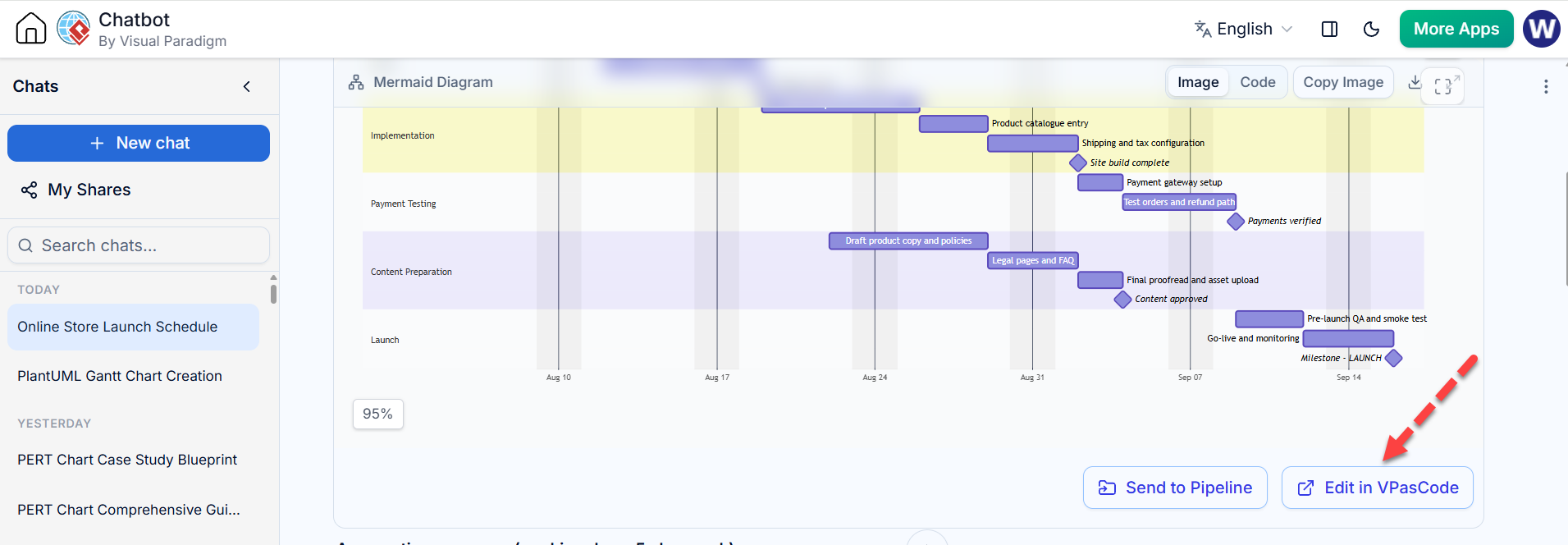
Once the chatbot generates the Mermaid code, you will see a rendered preview similar to the image below, showing the “Online Store Launch Schedule” with distinct phases like Implementation and Content Preparation.
(Note: The interface allows for immediate verification of the timeline logic.)
Bridging the Gap: The “Edit in VPasCode” Workflow
While the Chatbot is excellent for generating initial drafts, complex projects often require granular control that prompts cannot provide. This is where the integration with VPasCode becomes critical.
VPasCode (Visual Paradigm as Code) is a browser-based diagram-as-code editor. It supports formats including Mermaid and PlantUML, offering live diagram rendering and AI features for modifying diagram code. When you click the “Edit in VPasCode” button in the chat interface, you are exporting the semantic logic of your project into a robust editor environment.
3. Iterative Revision in VPasCode
The workflow in VPasCode is designed for rapid iteration. The interface provides a split view: the source code on one side and the live rendered preview on the other.
- Open the Editor: Navigate to the VPasCode environment and select the supported Gantt format (Mermaid).
- Inspect the Preview: Look for missing bars, incorrect date alignments, or rendering errors. An error-free render does not prove the schedule is logically correct; you must verify the dates against the source data.
- Use AI for Narrow Changes: Instead of rewriting the entire code block, use the AI modification feature. Be specific in your instructions.
Example of a Specific Revision Prompt:
Move "Content preparation" to September 1 and keep the "Launch" date fixed.Contrast this with a vague prompt like “make the schedule better,” which often leads to hallucinated dates or structural changes you didn’t intend.
4. Verification and Export
After every change, verify both the source code and the rendered chart. The “Diagram as Code” philosophy ensures that you can export the finished diagram using available options (PNG, SVG, PDF) while retaining the text-based history of changes.
Technical Deep Dive: Mermaid Gantt Syntax
To effectively use VPasCode, one must understand the underlying syntax. Mermaid Gantt charts rely on a specific structure that defines tasks, durations, and dependencies.
Below is a breakdown of the core components found in the generated code for the “Online Store Launch” example:
gantt
    title Online Store Launch Schedule
    dateFormat  YYYY-MM-DD
    section Implementation
    Product catalogue entry       :a1, 2023-08-15, 10d
    Shipping and tax config       :a2, after a1, 5d
    Site build complete           :milestone, m1, 2023-08-25, 0d

    section Content Preparation
    Draft product copy            :b1, 2023-08-20, 7d
    Legal pages and FAQ           :b2, after b1, 3d

    section Launch
    Pre-launch QA                 :c1, 2023-09-01, 5d
    Milestone - LAUNCH            :milestone, m2, 2023-09-10, 0d
Key Syntax Elements:
section: Groups tasks into logical phases (e.g., Implementation, Launch).milestone: Represents a specific point in time with zero duration, used to mark critical achievements.after: Defines dependencies, ensuring that task B starts only after task A is completed.dateFormat: Sets the standard for interpreting date strings.
Why Visual Paradigm UML and VPasCode?
The combination of the Visual Paradigm ecosystem and VPasCode stands out in the current tooling landscape for several reasons:
- Diagram as Code: Unlike traditional GUI tools where diagrams are locked in proprietary formats, VPasCode allows you to version your diagrams using Git. This is invaluable for large teams tracking changes over time.
- AI Friendliness: The tools are optimized for LLM interaction. The Chatbot understands natural language requests, while VPasCode accepts AI-generated code and allows for AI-assisted editing.
- Unified Workflow: You can start with a high-level chat conversation, generate a Mermaid chart, and then click “Edit in VPasCode” for pixel-perfect alignment without switching contexts or losing data.
- Support for Multiple Standards: Whether you need PlantUML for software architecture or Mermaid for project management, the engine supports both seamlessly.
By adopting this workflow, project managers and developers can ensure that their visual documentation is not just a static image, but a dynamic, editable, and logically rigorous artifact of the project plan.