
Effective project management relies not just on understanding the sequence of tasks, but on knowing who is responsible for executing them. In professional environments utilizing team solutions like VP Online or Teamwork Server, the ability to assign specific team members to tasks within a Pert Chart transforms a simple timeline into a dynamic, actionable resource plan.
This tutorial explores the system architecture behind resource assignment in PERT charts, how data flows from team directories to task dependencies, and why this modeling capability is critical for modern project planning.
The Architecture of Task Assignment
When working with Visual Paradigm’s team solutions, the underlying architecture connects your project’s logical flow (the PERT chart) with your organizational hierarchy (the team roster). This integration ensures that when you define a dependency or a duration, you also define accountability.
The system operates on a Contextual Assignment Model, where the “Responsible Person” is a property of the task node. This property is dynamically linked to the available user pool.
1. The Data Structure
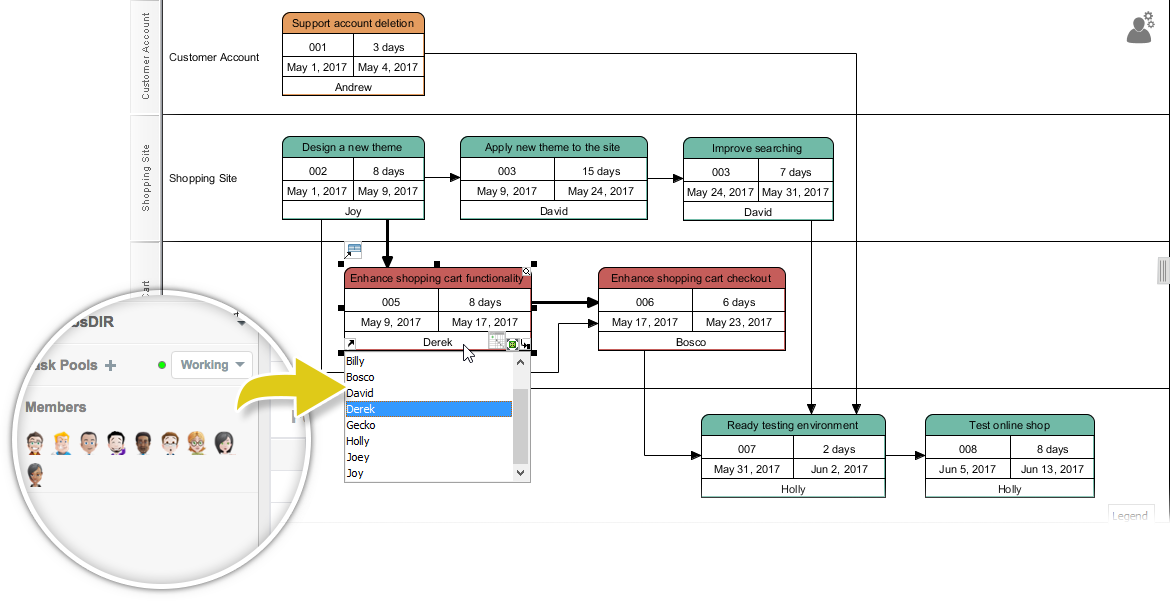
In the context of the diagram below, each task box (Node) contains specific metadata. Beyond the task ID and duration, the system stores a reference to a user ID from the team directory.
// Conceptual JSON structure of a PERT Task Node
{
  "taskId": "005",
  "description": "Enhance shopping cart functionality",
  "duration": "8 days",
  "responsiblePerson": {
    "userId": "user_derek",
    "name": "Derek",
    "avatar": "derek_profile_icon.png"
  },
  "dependencies": ["002", "003"]
}
Step-by-Step: Assigning Responsible Persons
Visual Paradigm simplifies the assignment process through an intuitive UI overlay. Let’s walk through the workflow shown in the interface above.
Step 1: Select the Task Node
Begin by clicking on the task node you wish to assign. In the provided image, the node “Enhance shopping cart functionality” is selected. This action triggers the task editor or property panel.
Step 2: Access the Assignment Dropdown
Within the task details, locate the field designated for the responsible person. Visual Paradigm renders this as a dropdown menu that queries your active team solution (e.g., VP Online). You will see a list of all available team members.
[Task: Enhance shopping cart functionality]
-------------------------------------
ID: 005
Duration: 8 days
Responsible Person: [▼]
  - Billy
  - Bosco
  - David
  - Derek  <-- Selection Highlight
  - Gecko
  - Holly
  - Joey
  - Joy
Step 3: Select from the Team Directory
The system presents a list of members from the "Members" pool. By selecting a user (in this case, Derek), the system updates the task node's metadata. This ensures that the Gantt chart or PERT chart reflects the correct workload distribution.
Step 4: Verify the Assignment
Once assigned, the name "Derek" appears directly within the task node on the diagram. This visual cue is vital for quick status checks. The system also updates the timeline calculations, as different team members might have different availability or skill levels (depending on your advanced configuration).
Understanding the Visual Hierarchy
The diagram illustrates a hierarchical flow of development tasks. Notice how the assignment flows logically:
- Customer Account (Top Level): Andrew is assigned to the high-level "Support account deletion" task.
- Shopping Site (Mid Level): Joy and David handle the design and implementation phases ("Design a new theme", "Apply new theme").
- Implementation & Testing (Execution Level): Derek and Bosco are assigned to specific functional enhancements ("Enhance shopping cart"), while Holly is assigned to the final verification phase ("Ready testing environment").
This structure allows project managers to trace dependencies from the initial design phase all the way to testing, ensuring that every handoff between team members is documented.
Best Practices for Resource Modeling
When modeling projects with Visual Paradigm, consistency is key. Here are a few architectural best practices to follow:
- Clear Role Definitions: Ensure that the team members listed in your dropdown have defined roles. If "Derek" is a developer, assigning him to "Design a new theme" (a designer role) might trigger a warning in some advanced analytics modes.
- Dependency Chains: When assigning a successor task, ensure the predecessor is complete. Visual Paradigm's AI-assisted tools can help detect if a task is assigned to someone who is already overbooked by their other dependencies.
- Visual Consistency: Use color coding for task types (e.g., Red for critical path, Green for design) to make the assignment of responsibilities immediately visible.
Conclusion
By leveraging the "Responsible Person" feature in PERT Charts, you move from abstract planning to concrete execution. The integration of team data directly into the diagram ensures that your project plan is not just a schedule, but a roadmap of human effort and accountability.