
Introduction: Why I Finally Ditched Manual Screenshot Workflows
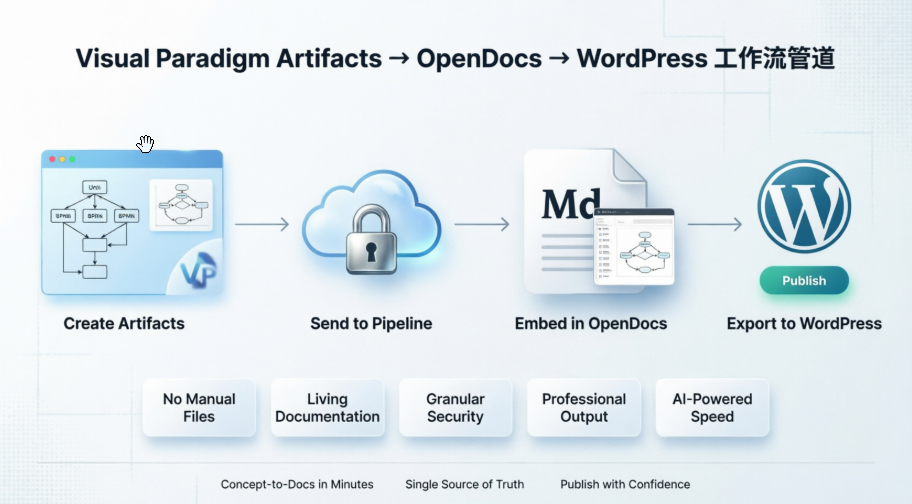
As a technical writer and part-time solutions architect, I’ve spent countless hours wrestling with the same frustrating cycle: design a diagram in Visual Paradigm, export it as a PNG, rename it with a version number, upload it to WordPress, update the alt text, and then repeat the entire process every time a stakeholder requests a tiny change. It was tedious, error-prone, and frankly, a waste of creative energy.
When I first heard about Visual Paradigm’s Artifacts → OpenDocs → WordPress workflow, I was skeptical. Another “seamless integration” promise? But after testing it end-to-end over the past few weeks, I can confidently say this pipeline has genuinely transformed how my team publishes technical documentation. In this review, I’ll walk you through my real-world experience—from initial setup to daily usage—and share why this might be the productivity boost your documentation workflow has been waiting for.
My Journey with the VP → OpenDocs → WordPress Workflow
Step 1: Creating Artifacts (The Part I Already Loved)
I started where I always do: in Visual Paradigm Desktop. Whether I’m mapping out a microservices architecture with UML component diagrams or documenting a business process in BPMN, VP’s modeling tools are robust. But previously, the value stopped at export. Now, instead of hitting “Export as Image,” I simply click the Pipeline button.
The artifact uploads securely to Visual Paradigm’s cloud repository in seconds. No file naming conventions to remember, no FTP clients, no “where did I save that SVG?” panic.
Step 2: Embedding in OpenDocs (Where the Magic Happens)
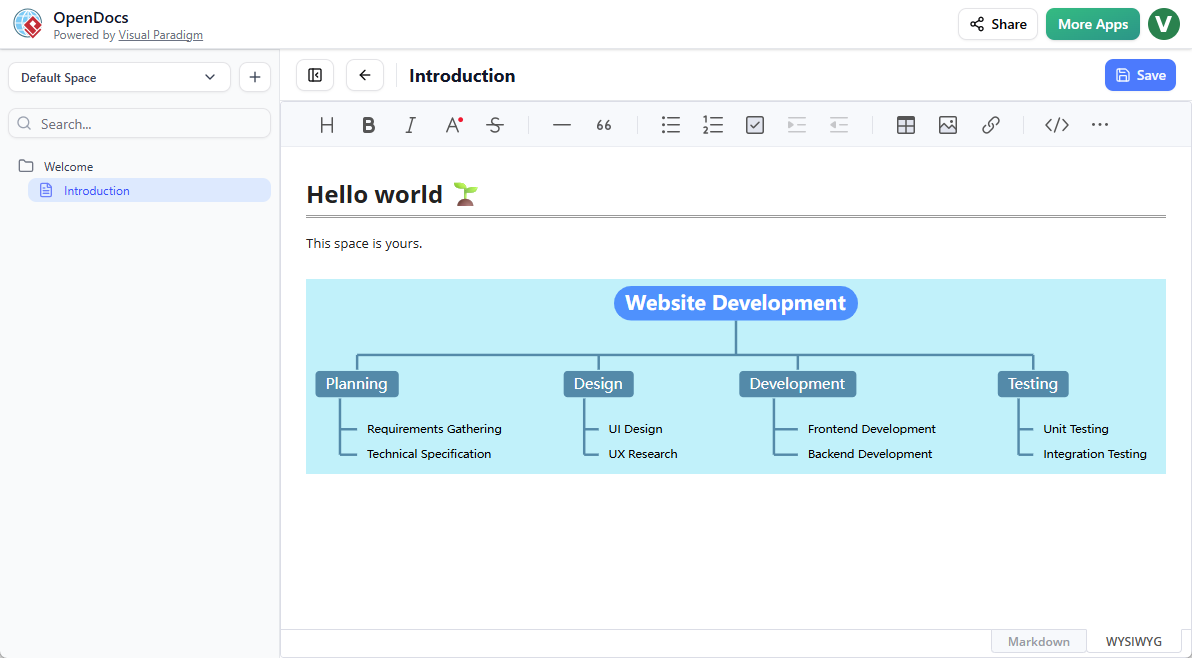
Next, I open OpenDocs—Visual Paradigm’s powerful knowledge base. Here’s what surprised me: the diagrams aren’t static images. They’re live, re-editable components. I can click into a UML sequence diagram embedded in my page, tweak a lifeline, and save. The change propagates everywhere that artifact is referenced.
For my team, this means our architecture decision records (ADRs) stay visually accurate without manual sync meetings. I also love that I can mix AI-generated visuals, rich text, and technical diagrams on the same page. It feels like having Figma, Notion, and a diagramming tool fused into one.
Step 3: Publishing to WordPress (The “Wait, That’s It?” Moment)
The WordPress integration was the piece I was most nervous about. Would it break my theme? Would formatting get messy?
Setup required generating an Application Password in my WordPress user profile (more on that below), but after that one-time step, publishing is shockingly simple. In OpenDocs, I select which pages to push to WordPress, hit publish, and within moments, my documentation appears on our public knowledge base—fully styled, responsive, and with interactive diagrams intact.
No more copying HTML snippets or debugging CSS conflicts. For stakeholder-facing docs, I can publish only specific OpenDocs pages, keeping internal notes private while sharing polished deliverables.
Key Benefits I’ve Experienced Firsthand
✅ No More File Management Overhead
I used to spend ~15 minutes per diagram update on file handling. Now? Zero. The pipeline handles versioning and syncing automatically.
✅ Living, Breathing Documentation
When our backend team updates a service boundary in the master ArchiMate model, I can refresh the embedded diagram in OpenDocs, and the change flows through to WordPress. Our docs finally feel current.
✅ Granular Control Over What Gets Published
I maintain a comprehensive internal knowledge base in OpenDocs but publish only client-ready subsets to WordPress. Security and simplicity, without compromise.
✅ Professional Output Without the Friction
The diagrams retain their vector quality on WordPress. No more pixelated screenshots. Our architecture pages now look as polished as our product UI.
✅ AI-Assisted Speed
Using OpenDocs’ AI features, I can generate a first-draft breakdown structure from a bullet list in seconds, then refine it visually. It’s like having a junior analyst on demand.
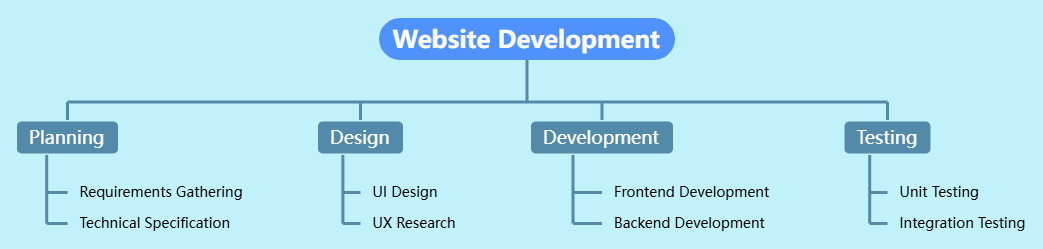
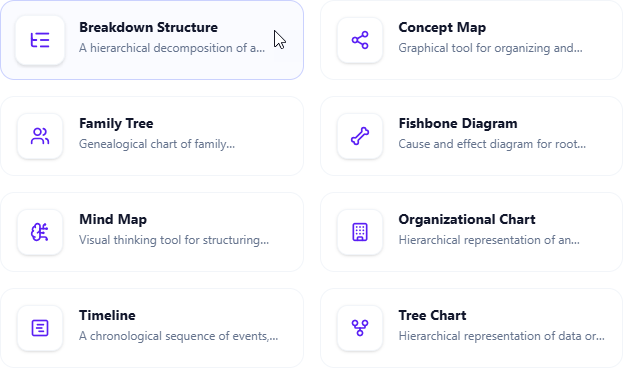
Breakdown Structure Tool: My New Secret Weapon for Complex Projects
Just when I thought the workflow couldn’t get better, Visual Paradigm added native Breakdown Structure support to OpenDocs. As someone who regularly decomposes large initiatives (think: multi-quarter platform migrations), this feature is a game-changer.
How I Use It: Two Flexible Modes
🔹 Embedded in Documents: When writing a project charter in OpenDocs, I insert a breakdown structure directly into the page. It provides immediate visual context for stakeholders reading the doc.
🔹 Standalone Component Pages: For high-level overviews, I create dedicated Breakdown Structure pages in my Space. These become reusable assets I can link to from multiple documents.
My Simple Creation Workflow
- Open a page in OpenDocs and click Edit
- Place my cursor where I want the chart
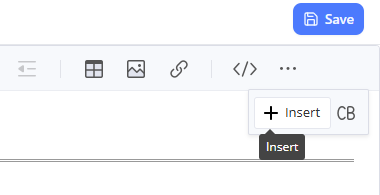
- Click Insert → Mind Maps > Breakdown Structure
- Start typing or use AI to generate nodes from text
- Customize colors, shapes, and connectors to match our brand
- Save and watch it render beautifully
The editor is intuitive—drag to reorder nodes, right-click to add children, and the auto-layout keeps everything tidy. For a non-designer like me, that’s invaluable.
Quick Setup Tip: WordPress Application Password
If you’re ready to try the WordPress integration, here’s the one-time setup step that tripped me up initially:
- Log in to your WordPress admin dashboard
- Go to Users → Profile
- Scroll to Application Passwords
- Enter a name (e.g., “Visual Paradigm OpenDocs”) and click Add New Application Password
- Copy the generated password—you’ll paste this into OpenDocs’ WordPress integration settings
That’s it. No OAuth redirects, no plugin installations. Just secure, token-based auth.
(Need a visual walkthrough? I found this YouTube tutorial helpful when I first set it up.)
Conclusion: Why This Workflow Earned a Permanent Spot in My Toolkit
After weeks of daily use, I can say without hesitation: Visual Paradigm’s Artifacts → OpenDocs → WordPress pipeline isn’t just a nice-to-have—it’s a fundamental upgrade to how technical teams create and share knowledge.
What started as a solution to my screenshot fatigue has become the backbone of our documentation strategy. The ability to maintain a single source of truth for diagrams, edit them in context, and publish selectively to WordPress has saved my team hours every week. And with new features like the Breakdown Structure tool, the platform continues to evolve in ways that address real pain points.
If you’re still manually exporting diagrams or juggling multiple tools for documentation, I’d encourage you to test this workflow. For me, the ROI was immediate: less time managing files, more time focusing on clarity and impact. In a world where technical communication can make or break project success, that’s not just convenient—it’s essential.
Have you tried this pipeline? I’d love to hear about your experience in the comments below.
References
- Sync AI Diagrams to OpenDocs Pipeline Guide: Official release notes detailing how to connect Visual Paradigm artifacts to OpenDocs via the Pipeline feature.
- Export OpenDocs Knowledge Bases Directly to WordPress: Step-by-step announcement of the WordPress publishing integration, including setup instructions and use cases.
- Visual Paradigm Pipeline: The Bridge for AI Modeling: Conceptual overview of how the Pipeline feature connects VP’s modeling tools with OpenDocs and other destinations.
- Streamline Documentation Workflow with VP Desktop → OpenDocs: Video tutorial demonstrating the end-to-end process of sending diagrams from Visual Paradigm Desktop into OpenDocs.
- Visual Paradigm Online to OpenDocs Export: Guide for users of the web-based VP Online to export artifacts directly into OpenDocs.
- My Journey to Seamless Documentation: Sending VP Creations Directly to OpenDocs: First-person user story highlighting real-world benefits and workflow improvements.
- Visual Paradigm OpenDocs: The Complete Developer’s Guide to AI-Powered Technical Documentation: In-depth review covering OpenDocs’ features, AI capabilities, and integration patterns.
- OpenDocs Page-Based Sharing Update: Details on granular publishing controls that enable selective WordPress exports.
- From Model to Manual: A Software Engineer’s Guide to Syncing VP Desktop Diagrams with OpenDocs: Practical walkthrough aimed at engineering teams adopting the pipeline.
- OpenDocs Professional Mind Map Integration: Announcement of advanced mind mapping features, including Breakdown Structure support.
- Fishbone Diagram Root Cause Analysis in OpenDocs: Coverage of additional AI-powered diagram types now available in OpenDocs.
- OpenDocs Timeline Diagram Update: Details on timeline visualization capabilities for project documentation.
- OpenDocs Official Feature Landing Page: Central hub for learning about OpenDocs’ AI-powered knowledge management capabilities.
- Try OpenDocs Breakdown Structure Tool: Direct link to start using the Breakdown Structure chart maker in OpenDocs.