


Creating visual representations of software systems is a critical skill for architects and developers. While class diagrams define the structure, object diagrams provide a snapshot of the system in action at a specific moment in time. This guide details the process of drawing UML object diagrams accurately and effectively. We will explore the syntax, relationships, and best practices required to produce clear documentation.
🧐 What is an Object Diagram?
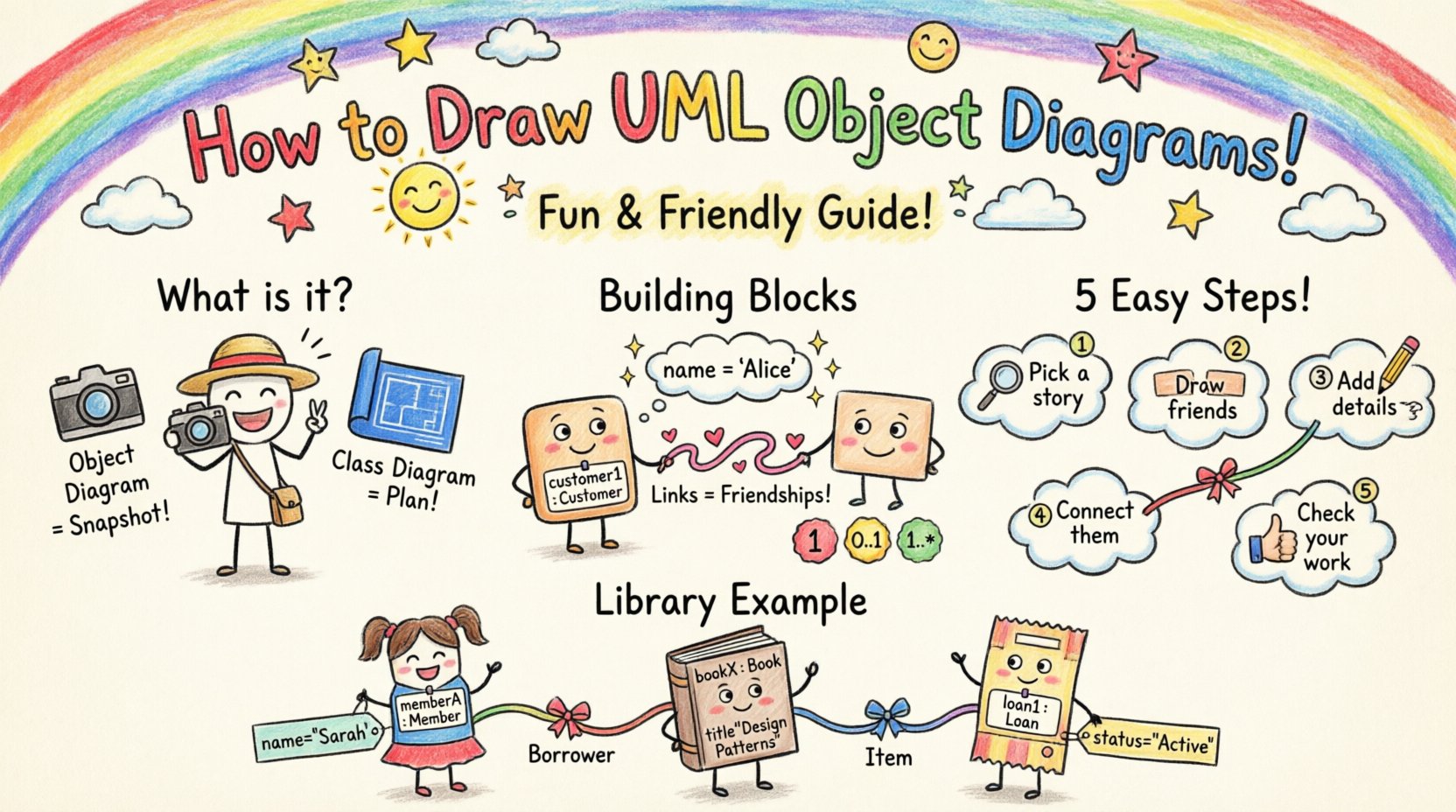
An object diagram is a static view of a system. It is essentially an instance of a class diagram. Where a class diagram describes what objects could exist, an object diagram describes what objects do exist at a particular instant. Think of it as a photograph compared to a blueprint. The blueprint shows the potential design; the photograph shows the actual state.
These diagrams are particularly useful for:
- Validating Design: Checking if the class structure supports the intended runtime behavior.
- Debugging: Visualizing the state of memory during a specific operation.
- Communication: Explaining complex data relationships to stakeholders who find abstract class definitions difficult to grasp.
- Testing: Serving as a reference for expected object states during unit testing.
By focusing on instances, object diagrams strip away the abstraction of the class and deal directly with the data that flows through the system.
🧱 Core Components of an Object Diagram
To draw these diagrams correctly, one must understand the specific notation used. Every element serves a purpose in defining the runtime environment.
1. Object Instances
Instances represent specific entities. They appear as rectangles with a horizontal line dividing them into two sections. The top section contains the object name and class name. The bottom section lists the attribute values.
- Format: objectName : ClassName
- Example: customer1 : Customer
Instance names are often italicized, while class names are bolded to maintain distinction.
2. Links
Links represent associations between objects. They are solid lines connecting two instances. Unlike class associations, which define the potential for a relationship, object links show an active connection.
- Direction: Lines are usually bidirectional unless a navigation property exists.
- Labels: Role names can be placed on the line to indicate how the relationship is viewed from each side.
3. Data Values
Attributes are listed within the instance rectangle. In an object diagram, these are not just types (like String), but actual values (like "John Doe").
- Format:
attributeName = value - Example:
name = "Alice"
This level of detail makes object diagrams concrete and easy to validate against code execution logs.
4. Multiplicity
Multiplicity constraints define how many instances can be linked. In object diagrams, this is often implicit based on the visible connections, but it can be explicitly noted near the link ends.
- 0..1: Zero or one instance.
- 1..*: One or more instances.
- 1: Exactly one instance.
⚖️ Class Diagram vs. Object Diagram
Understanding the distinction between these two artifacts is vital for avoiding confusion. The table below outlines the key differences.
| Feature | Class Diagram | Object Diagram |
|---|---|---|
| Focus | Structure and types | Instances and data |
| Time | Static design | Snapshot of a moment |
| Names | Class names (e.g., User) | Instance names (e.g., user1) |
| Attributes | Data types (e.g., String) |
Actual values (e.g., "Bob") |
| Use Case | Blueprint for developers | Validation and debugging |
Both diagrams use similar notation for relationships, but the interpretation changes. A link in an object diagram is a concrete realization of an association in a class diagram.
🛠️ Step-by-Step Guide to Drawing
Creating a professional object diagram requires a structured approach. Follow these steps to ensure accuracy and clarity.
Step 1: Define the Scope and Context
Before drawing, determine what part of the system you are modeling. Object diagrams can become cluttered quickly if too much is included.
- Select a Scenario: Choose a specific use case (e.g., “User logs in and purchases an item”).
- Identify Key Objects: List the classes involved in this specific scenario.
- Exclude Irrelevant Data: Do not draw objects that are not part of this snapshot.
Step 2: Create the Instances
Draw the rectangles for each object involved in the scenario.
- Name Uniquely: Ensure every instance has a unique identifier within the diagram scope.
- Label Correctly: Use the format instanceName : ClassName.
- Positioning: Place instances logically to minimize line crossings later.
Step 3: Assign Attribute Values
Populate the lower section of each rectangle with realistic data.
- Use Realistic Data: Instead of
id = 0, useid = 1045if that fits the context. - Check Types: Ensure values match the data types defined in the class diagram (e.g., do not put text in a date field).
- Handle Collections: For lists or arrays, show the count or specific items (e.g.,
items = [Book1, Book2]).
Step 4: Draw the Links
Connect the instances to represent relationships.
- Match Associations: Ensure links mirror the relationships defined in the class diagram.
- Add Role Names: Label the ends of the lines if the relationship has specific names (e.g., “Author” on one side, “Writes” on the other).
- Verify Multiplicity: Ensure the number of links matches the allowed multiplicity constraints.
Step 5: Review and Refine
Perform a final check on the diagram.
- Consistency: Are all names italicized? Are class names bold?
- Completeness: Are all required attributes populated?
- Clarity: Is the layout easy to read without excessive crossing lines?
📊 Detailed Example: A Library System
Let us apply these steps to a library management scenario. We will model a specific transaction where a member borrows a book.
1. The Classes Involved
- Member
- Book
- Loan
2. The Instances
- memberA : Member
- bookX : Book
- loan1 : Loan
3. The Data Values
- memberA :
name = "Sarah",id = "M001" - bookX :
title = "Design Patterns",isbn = "123-456" - loan1 :
date = "2023-10-01",status = "Active"
4. The Relationships
- memberA is linked to loan1 (Role: Borrower).
- bookX is linked to loan1 (Role: Item).
This snapshot shows exactly what is happening in the database at that moment. It confirms that Sarah is borrowing “Design Patterns” and the loan is currently active.
🚫 Common Mistakes to Avoid
Even experienced modelers make errors when creating object diagrams. Avoid these pitfalls to maintain professional quality.
1. Confusing Classes and Objects
Do not write class names in the instance section. Do not write instance names in the class section. The distinction between italic and bold is not just aesthetic; it is semantic.
2. Overloading the Diagram
Do not try to draw the entire system state in one diagram. Object diagrams are snapshots. If the system is complex, create multiple diagrams for different scenarios.
3. Ignoring Null Values
If an attribute has no value, indicate it clearly. In some notations, this is left blank; in others, it is marked as null. Consistency is key.
4. Missing Multiplicity
Ensure that the number of links matches the rules. If a class requires at least one link, the object diagram must show at least one link.
5. Inconsistent Naming
Use a standard convention for naming instances. For example, prefixing with the class name (e.g., user1) helps readers quickly identify the type.
📝 Best Practices for Maintenance
Object diagrams are not static documents. They evolve as the system changes. Follow these practices to keep them useful.
- Version Control: Treat diagrams as code. Store them in a repository to track changes over time.
- Link to Code: Where possible, link diagram elements to specific classes in the codebase for traceability.
- Regular Updates: Review object diagrams during sprint reviews to ensure they reflect the current state of the application.
- Automated Generation: If the environment supports it, generate object diagrams from code snapshots to reduce manual effort.
- Clear Documentation: Add notes to explain complex data states that are not obvious from the diagram alone.
🔍 Frequently Asked Questions
Q: Can I use object diagrams for dynamic systems?
Object diagrams are static snapshots. They do not show time progression. For dynamic behavior, use Sequence Diagrams or State Machine Diagrams. Object diagrams show the state at a point, not through time.
Q: How do I represent inheritance?
Inheritance is a class-level concept. In an object diagram, you do not draw inheritance lines between instances. You simply show the instance type. An instance of a subclass is still an instance of that subclass.
Q: Are object diagrams required for all projects?
No. They are most valuable for complex systems with intricate data relationships. For simple applications, a class diagram may suffice.
Q: How do I handle circular references?
Object diagrams can show circular references (e.g., Object A links to B, B links back to A). This is valid if the class diagram allows it. Just ensure the lines do not create visual confusion.
Q: What is the difference between an object diagram and a state diagram?
A state diagram shows how an object changes behavior over time. An object diagram shows the data held by objects at a specific time. They serve complementary purposes.
🔗 Integrating with Other UML Models
Object diagrams do not exist in isolation. They work best when integrated with other parts of the UML suite.
With Class Diagrams
Use the class diagram as the template. Every link in the object diagram must correspond to an association in the class diagram. This ensures structural consistency.
With Sequence Diagrams
Sequence diagrams show the flow of messages. Object diagrams can be used to define the participants and their attributes at the start of the sequence. This provides context for the interactions.
With Activity Diagrams
Activity diagrams show the workflow. Object diagrams can be inserted at specific nodes to show the data state when a particular action is completed.
🎯 Conclusion
Creating UML object diagrams is a precise task that requires attention to detail. By following the steps outlined in this guide, you can produce diagrams that accurately reflect the runtime state of your system. These diagrams serve as a bridge between abstract design and concrete implementation.
Remember to:
- Focus on specific scenarios rather than the whole system.
- Use correct notation for instances and attributes.
- Keep the diagram clean and readable.
- Update the diagrams as the system evolves.
Mastery of these diagrams enhances communication within development teams and provides a clear reference for debugging and validation. With practice, drawing these diagrams becomes a natural part of the software design process.